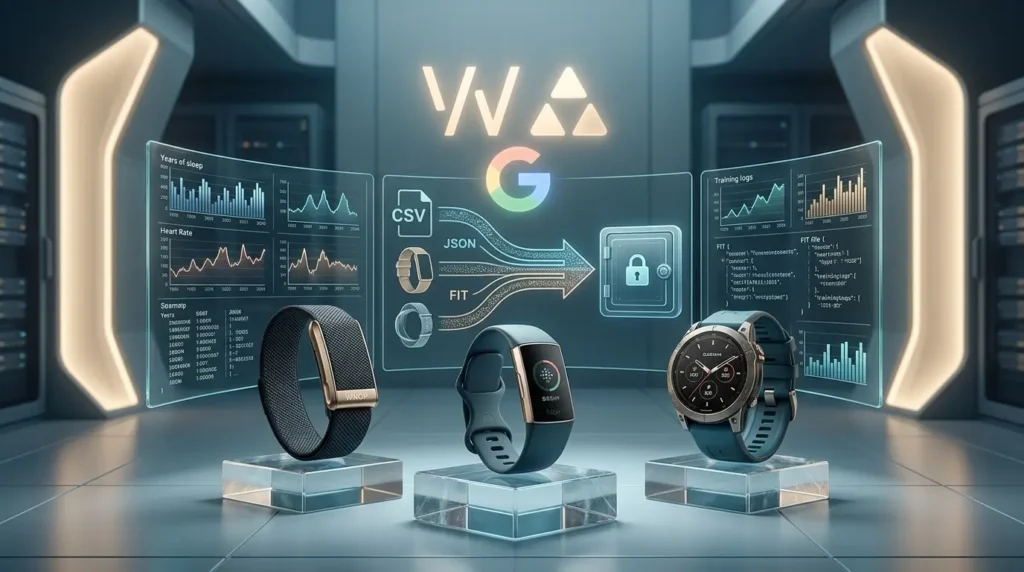
Years of sleep, heart rate, and training history sit behind a single login on every fitness platform. Switching devices or ending a subscription is the exact moment that history is most exposed.
All three major platforms will hand your data back. The request paths, the wait times, and the file structures are nothing alike.
Key Takeaways
- Garmin returns the deepest archive of the three, but publishes no turnaround commitment. Request it well before you need it, not the night you plan to cancel.
- Fitbit exports now run through Google Takeout following the May 2026 rebrand to Google Health. The legacy Fitbit login path is closed.
- Whoop returns clean CSV files in minutes, but the request has to be filed while the membership is still active.
Export your full history from Garmin Connect
Garmin splits export into two completely different mechanisms. One is instant and narrow. The other is comprehensive and slow.
Single activities: fast, one file at a time
Open an activity on connect.garmin.com, then use the gear menu to export. You get GPX, TCX, or the original upload file.
Choose original FIT whenever you have the option. GPX and TCX discard Garmin proprietary fields including Training Load, Body Battery, and running power.
The mobile app exports nothing. Single-file export is a web-only function.
The full account archive
Sign in on the web, open Account Settings, and find Export Your Data under account management. Confirm the request and Garmin emails a download link when the archive is built.
Garmin does not publish a turnaround time for this. Community reports cluster in the 24 to 48 hour range, and Garmin’s own inReach account documentation warns that an export can take up to 30 days in some cases.
What is actually inside the Garmin ZIP
The archive is not flat. Your workouts live inside nested ZIP files under a DI_CONNECT directory, in a folder for uploaded files, split into parts.
Health data arrives separately as JSON and CSV: sleep, stress, resting heart rate, Body Battery, and daily summaries. Accounts with several years of second-by-second sensor data can run to multiple gigabytes.
FIT files are binary. Garmin publishes a free FIT-to-CSV converter in its developer SDK if you need spreadsheet-readable output.
Fitbit is now Google Health: export through Takeout
The Fitbit app became the Google Health app on May 19, 2026. Standalone Fitbit logins stopped working on the same date, and a Google Account is now mandatory.
That change moved the export path. The old fitbit.com data export page only ever applied to unmigrated legacy accounts, and Google began permanently deleting data tied to those accounts on July 15, 2026.
The Takeout procedure
- Go to takeout.google.com and sign in with the Google Account linked to your tracker.
- Click Deselect all.
- Select Google Health. Some accounts and older documentation still show this labeled Fitbit; both point to the same archive.
- Expand the sub-items to filter by Activity, Sleep, Heart Rate, and other categories.
- Choose ZIP delivery by email link, then create the export.
Preparation ranges from a few minutes on a light account to several hours on one holding years of granular heart rate samples. Large archives split into multiple parts, and download links expire, so pull every part promptly.
The extracted structure lands under a Global Export Data folder. Most files are JSON. A subset of activity data is available as CSV if you select that format.
Export Whoop before your membership lapses
Whoop’s export lives in the mobile app and the web dashboard. Open the menu, select Data Export, choose a date range, and submit.
The download link arrives by email. Whoop states most exports land within a few minutes, with full account history taking up to 24 hours to generate.
What the CSV set contains
Whoop organizes everything by physiological cycle, defined as the period from one sleep to the next, rather than by calendar day. That distinction matters the moment you try to join these rows against calendar-indexed data from another platform.
The export covers Sleep, Recovery, and Strain metrics: daily scores, resting heart rate, HRV, respiratory rate, and sleep architecture. Journal entries come through as their own file. WHOOP MG hardware on a Life membership adds medical-grade health data.
Our long-term Whoop 5.0 performance log covers which of these metrics actually hold analytical value over a full year.
Timing the request against cancellation
Whoop’s guidance is unambiguous: request the full export while the account is active, and download the file from your email before the membership expires. Do not assume the app stays readable afterward.
Members leaving over recurring cost should read our three-year ownership breakdown against the Garmin CIRQA before deciding where the history goes next.
What formats you actually get
| Platform | Where you request it | What arrives | Typical wait |
|---|---|---|---|
| Garmin Connect | Account Settings, web only | ZIP: nested FIT files plus JSON and CSV health data | Not published; commonly 24 to 48 hours |
| Google Health (Fitbit) | Google Takeout | ZIP: mostly JSON, some CSV | Minutes to several hours |
| Whoop | App menu or web dashboard | Multiple CSV files via email link | Minutes; up to 24 hours for full history |
Only Whoop delivers something you can open directly in a spreadsheet. Garmin and Google both require conversion work before the data is usable outside their own apps.
Moving history into a new platform
This is where expectations break. Exporting is solved. Importing is not.
What Garmin Connect will accept
Garmin Connect has an import function reached through the upload icon on the web dashboard. Its scope is narrow.
- Individual activity files: FIT, TCX, and GPX, one file per activity
- Weight and body composition: CSV
- Daily summary metrics: steps, distance, calories, floors, intensity minutes
Re-importing the same file overwrites rather than duplicates the earlier values. Uploading roughly a year of data per batch keeps failure rates down.
What does not transfer
Sleep stages, continuous heart rate history, and badge or streak records have no import format in Garmin Connect. No third-party converter changes that, because the receiving endpoint does not exist.
Imported historical data also does not feed Garmin’s training load, VO2 max, or acclimation models. Those calculations only run on data the device itself recorded.
The realistic outcome is a split archive: your new platform going forward, and a cold JSON or CSV backup covering everything before the switch. If continuity matters more than a single unified dashboard, check what actually syncs between Garmin and Apple Health before committing to a platform.
FAQ
Partially. GPS workouts, weight, and daily step or calorie totals import successfully. Sleep stages and continuous heart rate do not, because Garmin Connect has no import format for them. Plan on keeping the Takeout archive as a permanent cold backup.
Whoop sends CSV. Google Takeout sends mostly JSON with limited CSV options. Garmin sends a ZIP containing binary FIT files plus JSON and CSV health records, which needs conversion before spreadsheet analysis.
Whoop typically lands within minutes and states 24 hours as the ceiling for full history. Takeout ranges from minutes to several hours depending on account size. Garmin publishes no commitment at all, which is the strongest argument for requesting it early.
Do not count on it. Whoop directs members to export while the account is active and download before the membership expires. Garmin data is permanently deleted on account closure, so the export has to precede the deletion request in every case.